13.1 Release Notes
Download MS Word Version: 13.1 Release Notes
Paragon 13.1 Release Enhancements
October 2025
 Table of Contents
1. MLS Customizations and Administration 2
1.1. Auto-Maintain can use Delayed Marketing End Date 2
2. Corrections & Improvements 2
3. New Features & Enhancements 3
3.1. Expiring Listing Email Update 3
3.2. EasyCMA Updates 4
3.2.1. CMA Display Improvement: 4
3.2.2. Delete Custom CMA Subject Property Photos 5
1. MLS Customizations and Administration
1.1. Auto-Maintain can use Delayed Marketing End Date
Our initial addition of the Delayed Marketing Exempt Listings feature included a new process to automatically identify and update listings when the Delayed Marketing End Date is reached. This process automatically updates the Delayed Marketing Y/N value from Yes to No.
Some customers requested to extend that functionality to automatically adjust custom Listing Statuses using the Delayed Marketing End Date. With this release we updated our Auto-Maintain process to accept this new DMEL date field. If you would like to automatically adjust listing statuses based upon the Delayed Marketing End Date you can work with your Service Executive to configure this option.
2. Corrections & Improvements
• Correction for the Info Tips to appear for the IDX Include field on Connect LIM form
• Correction to allow the “OK” button to return users to the Login screen when the Session Expired popup appears in Connect
• Correction for the new Daily Default Hotsheet search on the Hotsheet Alerts Widget to use 1 Day, it was mistakenly using 7 Days
• Correction for the display of the Agent Name on consumer push notifications, it was mistakenly showing in reverse order of “Last First” instead of “First Last”
• Correction for the Measure Tool on the Paragon Pro map to display correctly
• Correction for specific fields to display on the Property History report in Paragon Pro
3. New Features & Enhancements
3.1. Expiring Listing Email Update
Managing listing timelines just got easier. We’ve enhanced the Expiring Listing email experience in Paragon and Paragon Connect to keep you informed and help you take quick action when a listing is nearing expiration. This update delivers a modern, streamlined design and introduces smart deep linking, so you can jump directly into your Published Listings with the Expiring Listings filter applied. No more searching—just one click to review, update, or extend your listing before it expires.
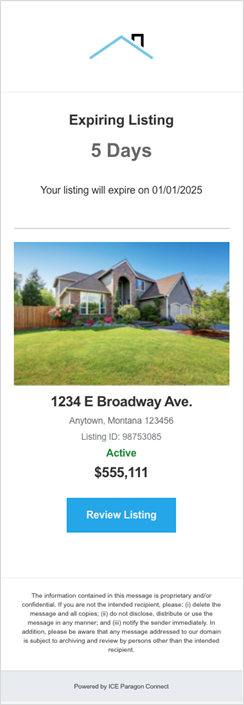
What’s Improved:
• Updated Email Design:
A cleaner, more visual layout featuring your listing’s photo and key details.
• Direct Access to Action:
The “Review Listing” button now opens the Published Listings page in Paragon Connect, with the Expiring Listings filter already applied—so you can jump straight into managing your listings.
• Timely Notifications:
Emails are automatically sent when a listing enters the expiration notice window.
• Agent Coverage:
Every agent associated with the listing receives the email.
Email Includes:
• Title: Expiring Listing in # Days
• Subtext: Your listing expires on MM/DD/YYYY
• Listing photo, address, status, price, and more
• Action button: Review Listing
• Footer disclaimer (same as previous version)
• Bottom bar: Powered by ICE Paragon Connect
3.2. EasyCMA Updates
We’ve made several enhancements to EasyCMA and the Collaboration Center to improve how agents and clients interact with EasyCMA reports.
3.2.1. CMA Display Improvement:
To make CMA reports more visually informative, we’ve enhanced the CMA cards to automatically display a Google Street View image of the subject property when no photo has been uploaded. This gives agents a clearer sense of the property's location and surroundings, even if a custom image isn’t available.
This update mirrors the functionality already familiar from Property Watch, helping users quickly recognize and differentiate properties at a glance. It’s especially useful when reviewing multiple CMAs or when working with clients who prefer visual context.
If a photo has been uploaded, it will continue to take precedence and appear on the card. However, if no photo is available, the system will attempt to show a static Street View image. In cases where Street View isn’t available, a fallback image will be displayed instead.
This change ensures that CMA cards are never left blank and always provide a helpful visual reference—making it easier for agents to stay organized and for clients to stay engaged.
3.2.2. Delete Custom CMA Subject Property Photos
Agents now have full control over the Subject Property photos displayed in their CMA reports. If you’ve uploaded a subject property photo and later decide it’s not the right fit, you can easily remove it. A new delete option has been added next to the Upload Photo button, making this process quick and intuitive.
When you delete a photo, the system automatically replaces it with a Google Street View image of the property, if available. This ensures the CMA remains visually informative for both you and your clients. If Street View isn’t available, the fallback will be a map view centered on the property’s location—so there’s always a helpful visual reference.
This enhancement gives agents more flexibility and control over how their CMA reports look, while maintaining a consistent and professional experience for clients.
